

Deploy your first app
This walkthrough deploys mendhak/http-https-echo:41, a small public image that answers every request with a description of the request, including the environment variables you give it. You will create a project, add the image as a service, set variables, review the pending change, deploy it and reach it. It uses only the dashboard and one curl. A last section shows the same steps with the geass command line.
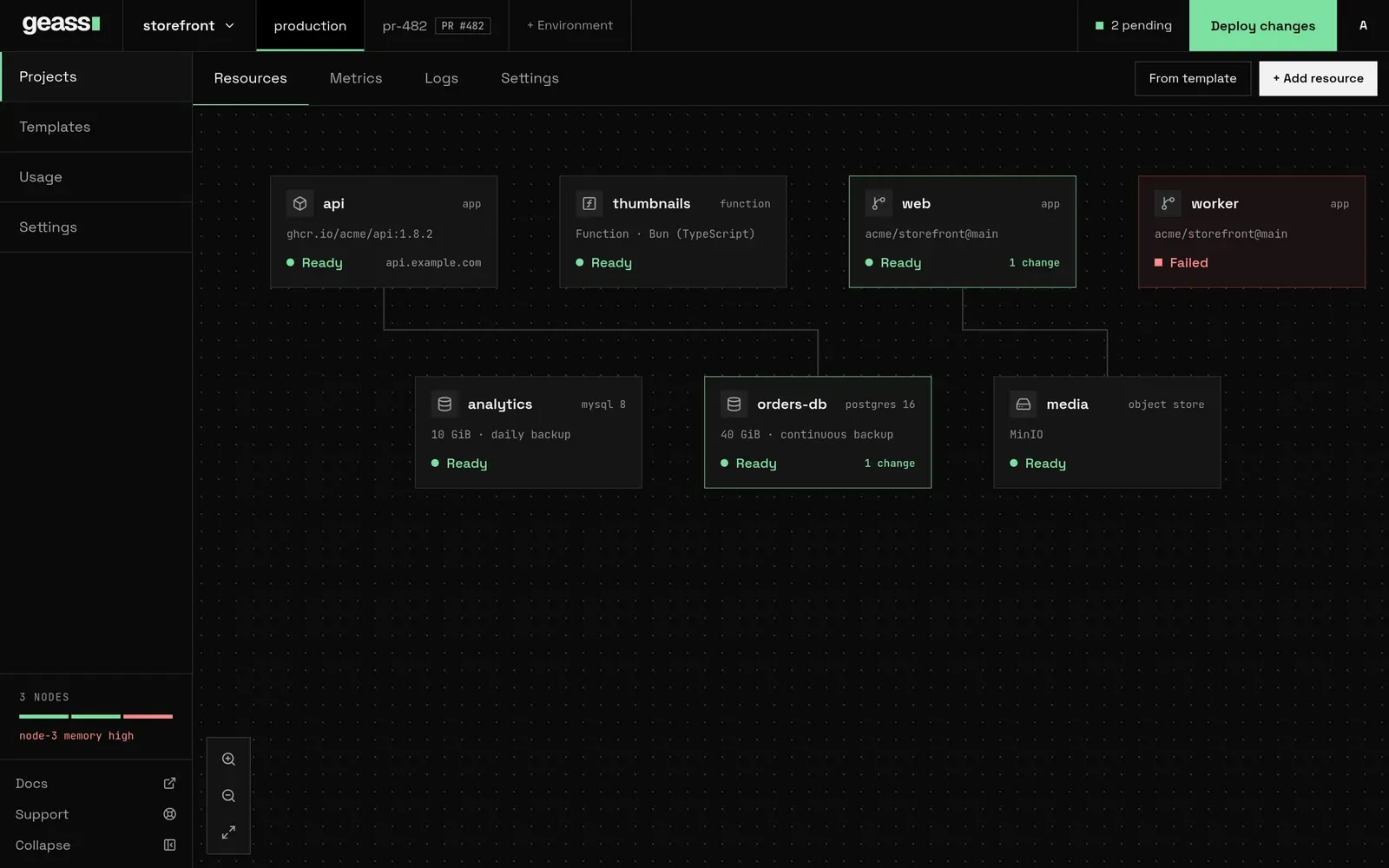 Screenshot with example data.
Before you start
Section titled “Before you start”- Geass is installed and the cluster reports
READY=True:sudo k3s kubectl -n geass-system get geasscluster. - You can sign in as an
admin. Aviewersees no New project or Add resource buttons. - For a URL that works from the internet you need a hostname that points at the server and port 80 open. Step 7 shows the options, including one that needs no domain.
1. Create a project
Section titled “1. Create a project”A project holds the services, databases and buckets of one application. It has one environment, production, to start with.
- Open Projects in the left rail.
- Choose New project. If your nodes belong to at least two regions, a drop-down beside the button lets you pick one first. Otherwise there is no choice to make.
Geass creates the project at once with a generated name such as swift-river and an ID of the form proj-1a2b3c4d, and opens it. The canvas says No resources deployed. Rename the project later under the project’s Settings → General.
2. Add the image
Section titled “2. Add the image”- Choose + Add resource at the right of the project tabs (Resources, Metrics, Logs, Settings). A search box opens with the prompt
Search, or paste a repo link or image name. - Choose Docker Image.
- Type
mendhak/http-https-echo:41and choose Create.
You can also paste the image into the first box. Geass offers Deploy image mendhak/http-https-echo:41 (From a container registry). Either way the box rejects references with spaces or unusual characters.
Geass saves the service as a draft and opens its panel, docked on the right, on Settings, with the message Service saved as a draft. Adjust settings or variables, then deploy. Nothing runs yet. The service shows Draft, the canvas card shows 1 change, and the top bar shows 1 pending.
3. Check the port
Section titled “3. Check the port”The echo image listens on 8080, and so does Geass by default, so there is nothing to change. To see or change it:
- In the service panel, open Settings and find Networking. Use Filter settings… to jump to it.
- Port is
8080. A port that differs from what the container listens on gives a bad gateway from the ingress.
The defaults match the demo’s other settings: one replica (Scale → Replicas), the image’s own start command (Deploy → Custom start command empty), and 0.1 CPU with 128 MB of memory per replica (Scale → Resources).
4. Add the variables
Section titled “4. Add the variables”-
Open the Variables tab.
-
Choose Raw Editor, paste these lines and choose Update variables:
ECHO_INCLUDE_ENV_VARS=1APP_NAME=geass-demoAPP_ENV=stagingFEATURE_FLAG=trueThe Raw Editor takes one
KEY=valueper line and replaces all plain variables of the service. To add one at a time instead, choose New Variable, fill Variable name and Variable value, leave Secret off and choose Add. -
The tab now shows
4 Service Variables. Values are masked; the eye icon reveals them.
Geass answers Variables saved. Deploy to apply them. Variables, like most settings, take effect on the next deploy. Do not put real secrets in this demo: the image prints its environment in every response. For real secrets, switch Secret on, and the value is stored as a Kubernetes Secret and never shown again. See Environment variables.
5. Review the pending change
Section titled “5. Review the pending change”The top bar now shows 2 pending: one for creating the draft and one for the variables. The number counts saved changes, not resources, so adding the four variables one at a time would have made it 5. Choose it to see a list, per resource, of what changed (the draft, the variables). Changes to a service that has never been deployed are held as pending, and nothing runs until you deploy.
Some settings never wait: a replica count, autoscaling, sleep when idle, the domain, HTTPS and metrics apply the moment you save them, and the message says Saved. Applied now. Anything that changes the container (image, port, variables, command, size) waits for a deploy, and the message says Saved. Deploy to apply them.
6. Deploy
Section titled “6. Deploy”Choose Deploy changes in the top bar. It deploys every pending change in the current environment, here one service. (Deploy all in the pending list does the same.)
Geass checks that the cluster has room for the service, records a deployment, and tells the operator to create it. You get the message Deployed 1 change and return to the canvas, where the card goes from Draft to Setting up to Ready. The first deploy pulls the image from Docker Hub, which takes longer than later ones.
To watch it, open the service and its Deployments tab. The newest deployment has an ACTIVE badge. Choose View logs to read the container output.
7. Find the URL
Section titled “7. Find the URL”The Deployments tab shows the service’s address at the top as a link, or one of Not deployed yet, Service is starting, Service is offline and No public domain. The same address is in Settings → Networking → Public networking. A service has a public URL only when it has a hostname, and a new service has none unless Cloudflare is connected. Pick one of these.
With a domain you own
Section titled “With a domain you own”- Create an
Arecord for a name such asecho.example.comthat points at your server’s public IP. - In the service’s Settings → Networking, enter
echo.example.comin Custom domain, and choose Save changes. It applies at once. - Open
http://echo.example.com/.
Leave HTTPS off for this walkthrough unless you gave the installer a GEASS_ACME_EMAIL. With HTTPS on, the Ingress answers only on HTTPS, and cert-manager asks Let’s Encrypt for a certificate from the letsencrypt-prod issuer. Geass creates that issuer only when it has a contact email, and Let’s Encrypt must reach 80/tcp on your server to validate the name. Until the certificate exists, Traefik serves its own certificate and the browser warns. See HTTPS certificates and Domains and TLS. Verify DNS only makes Geass check that the name resolves before it calls the domain ready.
With Cloudflare connected
Section titled “With Cloudflare connected”When Cloudflare is connected and ready under Settings → Connectors, Geass gives a service without a hostname one under your domain on its own: <service-id>-<project-id>.<your domain> for the production environment, over HTTP. Geass creates the DNS records for service hostnames only in Cloudflare Tunnel mode, so in the DNS-to-cluster mode make sure a record (a wildcard, for example) covers the name. See Connect a domain.
Without any domain
Section titled “Without any domain”Reach the service from the server itself. Its Kubernetes namespace is <project-id>-production and its Service has the service’s ID, a generated name such as quiet-harbor, as its name. The General section of the service’s Settings has the Service ID, and Networking → Private networking has the full address once the service is deployed.
sudo k3s kubectl -n proj-1a2b3c4d-production port-forward svc/quiet-harbor 8080:8080In another terminal on the server, run curl -s http://localhost:8080/.
Whichever way you reach it, the response describes your request and includes an env object that lists APP_NAME, APP_ENV, FEATURE_FLAG and ECHO_INCLUDE_ENV_VARS.
8. Change something
Section titled “8. Change something”- In the service’s Settings, open the Scale section, set Replicas to
2and choose Save changes. It applies at once (Saved. Applied now), because it does not replace the running container. The top bar stays at Up to date. - In Variables, change
APP_ENVtoproduction(Edit in the row’s menu). The top bar shows 1 pending. The running container still reportsstaging. - Choose Deploy changes. The new container starts with the new value. When nothing is pending, the service header has a Redeploy button that deploys the service again.
9. Clean up
Section titled “9. Clean up”In the service’s Settings, go to Delete service, type the service ID, choose Delete service and confirm with Delete permanently. Geass removes the Deployment, Service and Ingress it created, the service’s variables and its deployment history. To remove the project too, use the Danger section of the project’s Settings and type its name. See Uninstall Geass for what outlives a deleted resource.
Do the same from the command line (optional)
Section titled “Do the same from the command line (optional)”Everything above can be done with the geass command line, which calls the same dashboard through its /api/v1 API. You need the command line installed and signed in as an admin, which Install Geass and Sign in to the dashboard cover, and the project from step 1. geass projects list prints its ID, such as proj-1a2b3c4d.
# Steps 2 and 3: add the image as a draft. The name you give becomes the service's ID.geass apps create echo -p proj-1a2b3c4d -e production --image mendhak/http-https-echo:41 --port 8080
# Step 4: the variables, saved as a pending change.geass env set echo ECHO_INCLUDE_ENV_VARS=1 APP_NAME=geass-demo APP_ENV=staging FEATURE_FLAG=true
# Steps 5 and 6: deploy, and wait until the service is ready.geass deploy echo --wait
# Step 7: see the state, replicas and URL.geass status echo
# Step 8: more replicas apply at once; a changed variable waits for a deploy.geass scale echo 2geass env set echo APP_ENV=production --deploy --wait
# Read the latest container output, then watch it until you press Ctrl-C.geass logs echo --tail 20geass logs echo -f
# Step 9: clean up. It asks first; a script has to add --yes.geass apps delete echo --yes
geass apps create saves a draft, the same as Add resource, and nothing runs until geass deploy. geass deploy echo --wait prints a line on standard error each time the service changes and ends with a status table. It exits with 0 when the service is ready, 5 if the deploy failed, saying why, and 6 if it was not ready within 10 minutes (--timeout changes that). geass status shows - as the URL when the service has no hostname: use step 7 to give it one, or the port-forward in the same step, whose Service is named echo. geass logs needs Full access or a Read only, with logs token, and geass apps create echo ... --deploy saves and deploys in one command, which geass deploy after a plain create does in two.
See Command line for the rest of the commands and CLI commands for every flag.
What happens under the hood
Section titled “What happens under the hood”A service is a GeassApp object in geass-system. Adding it created the object as a draft with deploy.enabled: false, annotated geass.dev/deploy-workflow: "true", with a pending change of kind created. Deploy changes sets deploy.enabled: true, saves a snapshot of the spec in the geass.dev/last-deployed annotation, clears the pending markers and records a GeassDeployment. The operator reconciles from that snapshot and creates, in the namespace <project-id>-production, a Deployment, a Service of the same name and, once the service has a hostname, an Ingress. Settings that apply immediately are overlaid from the live spec on top of the snapshot.
sudo k3s kubectl -n geass-system get geassappssudo k3s kubectl -n proj-1a2b3c4d-production get deploy,svc,ingress,podsTroubleshooting
Section titled “Troubleshooting”The message No pending changes were deployed. Check the environment filter and resource settings. The top bar is on a different environment from the one you edited. Switch to the environment tab that holds the service.
This service needs about ... CPU and ... memory. The cluster currently has ... available. Scale up the cluster before creating it. The nodes have no room for even a 0.1 CPU service. The add-ons Geass installs use CPU and memory too. See Usage in the left rail and Usage and capacity.
The service stays on Setting up or shows Unavailable. Open Deployments → View logs. A message about the project or cluster not being ready means the cluster is still installing its add-ons. If the image cannot be pulled, check sudo k3s kubectl -n <project-id>-production describe pod for ImagePullBackOff; the server needs outbound access to the registry.
The status is Failed and the service header shows Retry. Provisioning failed after several attempts. Fix the cause named in the message, then choose Retry.
The URL shows 404 page not found. Traefik has no route for that hostname. Check Custom domain for typos, and that the request uses the same host name (not the bare IP address).
The URL shows Bad Gateway. The ingress cannot reach the container. Set Port to the port the image listens on, and deploy.
The URL does not respond from the internet. Port 80 is closed in the provider’s firewall or the host firewall, or the DNS record points elsewhere. The installer does not open it.
The browser warns about the certificate after you turned HTTPS on. No certificate has been issued yet, so Traefik serves its own. Check whether the cluster has the issuer, and what cert-manager says about the certificate:
sudo k3s kubectl -n geass-system get geasscluster default \ -o jsonpath='{.status.conditions[?(@.type=="ClusterIssuerReady")].message}{"\n"}'sudo k3s kubectl -n proj-1a2b3c4d-production get certificate,challengeA message about a missing ACME contact email means the cluster was installed without GEASS_ACME_EMAIL: see HTTPS certificates. Otherwise make sure the hostname’s DNS record points at the server and 80/tcp is open to Let’s Encrypt, or turn HTTPS off. See Domains and TLS.
The response does not include your variables. Variable changes apply on the next deploy. Check that Up to date is shown, or deploy.