

Projects and environments
A project is the unit that you organize work in, for example one product, one client, or one team. Inside a
project, each environment is an isolated copy of the place where your services, databases, and buckets run.
Examples of environments are production and staging. You use projects to keep unrelated work apart. You use
environments to try a change before the change reaches the environment that your users see.
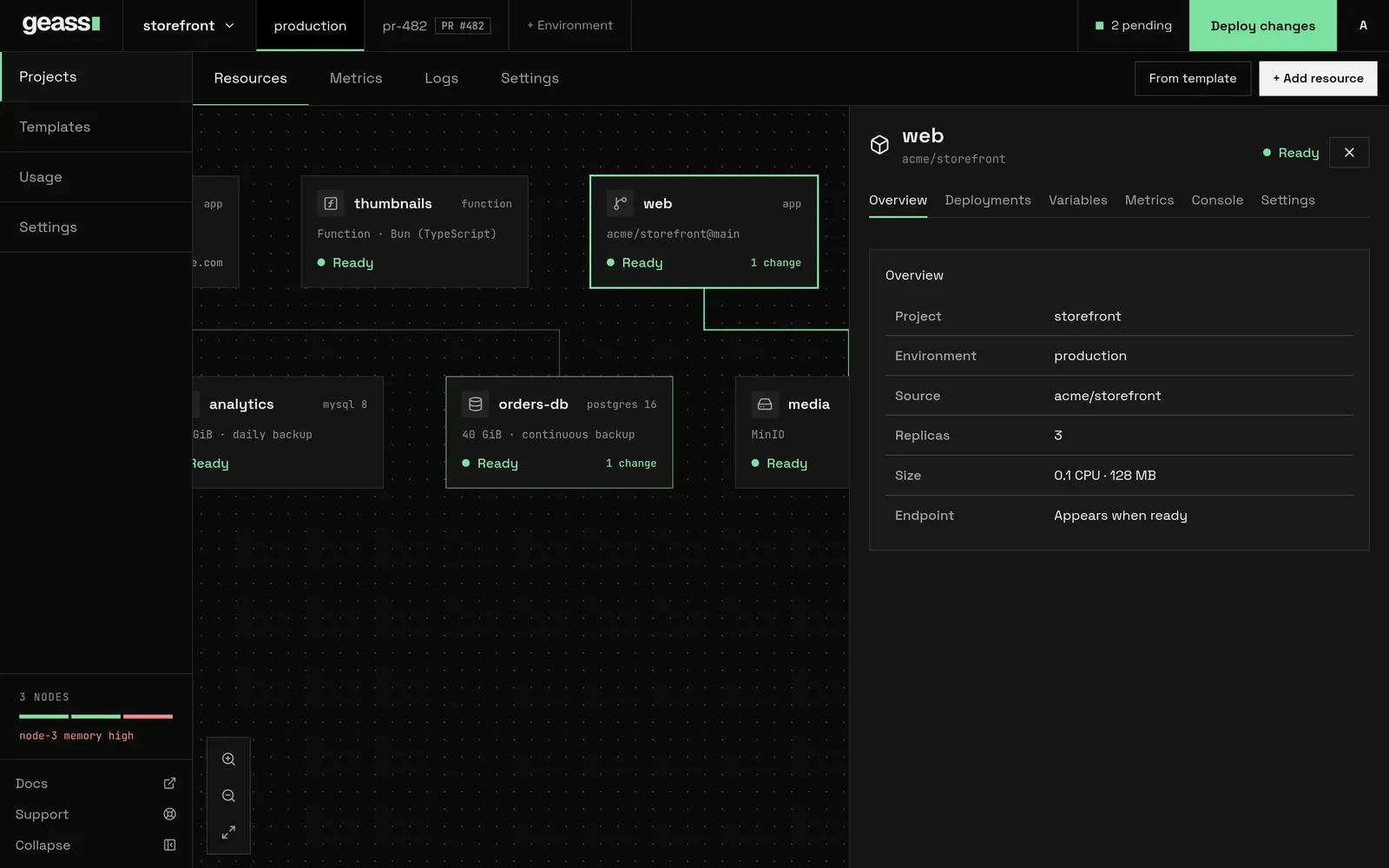 Screenshot with example data.
How projects and environments relate
Section titled “How projects and environments relate”| Project | Environment | |
|---|---|---|
| What it is | A named group. It has an ID such as proj-1a2b3c4d and a display name such as morning-beach. |
A named slot inside one project. A new project starts with one, called production. |
| What lives in it | Settings shared by every environment: region, required node tags, GitHub link, webhooks, backup storage, network access, pull request settings, and API tokens. | Services, functions, databases, logical databases, and buckets, plus its own shared variables. |
| Where it runs | Nowhere by itself. | In its own Kubernetes namespace, <project ID>-<environment>, for example proj-1a2b3c4d-production. |
| Deploys | Each environment keeps its own list of pending changes. Deploy changes applies only the environment that you are looking at. |
Two things follow from this relation:
- A resource belongs to exactly one environment. A service that runs in
productionandstagingis two separate services. Each service has its own ID, settings, variables, and domain. Geass does not copy resources between environments for you. The exceptions are pull request environments and templates. - Environments of one project are not walled off from each other. Services in every environment of a project can reach each other privately. Other projects cannot reach these services unless you allow it. For more information, see Network isolation.
Create a project
Section titled “Create a project”- Open Projects.
- If your nodes are tagged with two or more regions, a region menu appears beside the New project button. Select a region, or leave the menu on Default region (…). For more information, see Scaling and placement.
- Click New project.
Geass creates the project immediately. Geass does these things:
- It generates a name like
morning-beachand an ID likeproj-1a2b3c4d. - It creates the
productionenvironment. - It opens the project.
There is no form. To rename the project afterwards, use Settings → General → Name.
Only admins see New project. A read-only user (role viewer) can browse projects but cannot change anything.
You can do the same thing through the API, with a workspace admin token. For tokens, see Users and API tokens.
curl -X POST https://geass.example.com/api/projects/create \ -H "Authorization: Bearer $GEASS_TOKEN" \ -H "Accept: application/json"# {"project":"proj-1a2b3c4d"}To select a region, add -d region=eu-north. If you leave out the region, Geass uses the default region of the
cluster.
Environments
Section titled “Environments”The environment tabs
Section titled “The environment tabs”When you open a project, the top bar shows these items:
- The project switcher.
- One tab for each environment.
- A + Environment link after the tabs. Only admins see this link.
- On the right, the pending-changes button, Deploy changes, and your account menu.
The selected tab is the environment that the canvas, Deploy changes, and + Add resource act on. The address
keeps the selection as ?environment=staging. Thus, you can bookmark or share the selection.
A tab for a pull request environment carries a PR #n badge. In the
badge, n is the pull request number.
If you switch environments when a service or database panel is open, Geass closes the panel. Geass then shows the canvas of the new environment, because the same resource does not exist there.
Add an environment
Section titled “Add an environment”- In the top bar, click + Environment. The project’s Settings opens.
- Select Environments.
- Enter a name in the field that shows
stagingas an example. - Click New Environment.
The name must follow these rules:
- It contains only lowercase letters, digits, and hyphens.
- It starts and ends with a letter or digit.
- It makes the namespace name
<project ID>-<environment>63 characters or fewer. With a 13-character project ID, this leaves 49 characters.
Geass refuses a name that is already in use (“environment already exists”). A project can have at most 100 environments.
A new environment is empty. Fill it with + Add resource, From template, or the pull request feature.
curl -X POST https://geass.example.com/api/projects/proj-1a2b3c4d/environments/create \ -H "Authorization: Bearer $GEASS_TOKEN" \ -H "Accept: application/json" \ -d environment=stagingDelete an environment
Section titled “Delete an environment”- Open the project’s Settings → Environments.
- On the environment, click Delete. The button appears only when the project has more than one environment.
- Read the warning in Delete environment?.
- Click Delete environment.
When you delete an environment, Geass removes these items:
- The environment itself.
- All of its services, databases, logical databases, and buckets, and their running workloads.
- Its shared variables.
- The API tokens that were limited to it.
You cannot undo this deletion. A project must keep at least one environment (“a project must retain at least one environment”). Thus, you cannot delete the last environment.
Databases follow the same rules as when you delete them one at a time. For what Geass keeps, see Backups and restore.
curl -X POST https://geass.example.com/api/projects/proj-1a2b3c4d/environments/archive \ -H "Authorization: Bearer $GEASS_TOKEN" \ -H "Accept: application/json" \ -d environment=staging -d confirmName=stagingThe project canvas
Section titled “The project canvas”Resources is the first tab of a project. It shows every resource of the selected environment as a card on a canvas.
-
Position. Services and functions sit in the top row. Databases, logical databases, and buckets sit below, three to a row.
-
Card. Each card shows these items:
- An icon: a function, a GitHub branch for a repository service, or a box.
- The display name.
- A short kind, such as
app,function, orpostgres 16. - The source:
acme/storefront@main, an image name, orFunction · Bun (TypeScript).
The footer shows the status, and either the public host or the number of pending changes.
-
Status. Ready, Setting up, Draft, Unavailable, Failed, or Deleting. A New badge marks a resource that has never been deployed.
-
Lines. A line joins a service to a database or bucket when the service has a reference to it. A line also joins a logical database to its server.
-
Move and zoom. Drag the background to pan. Scroll to zoom, from 45% to 160%. Use the three buttons to zoom in, zoom out, and reset. Drag a card to move it. Your browser keeps the card positions for each project, and only your browser keeps them. Thus, another person or browser sees the default layout.
-
Open. Click a card to open its panel, docked on the right of the canvas. To go back, use the close button in the panel.
Admins also see From template and + Add resource above the canvas. + Add resource opens a search box with six choices: GitHub Repository, Database, Template, Docker Image, Function, and Bucket. You can type to filter, or paste a GitHub repository link or an image name. Geass creates everything that you add as a draft. The draft goes in the environment named at the bottom of the box (“Adding to staging”).
Pending changes and Deploy changes
Section titled “Pending changes and Deploy changes”Geass does not change what is running when you edit a form. New resources start as drafts. Geass saves most edits to a deployed resource as pending changes. You apply them together.
The top bar shows the state of the selected environment:
-
Up to date (disabled) means nothing is waiting.
-
N pending counts the saved changes that are not deployed. The count works like this:
- A new draft counts 1.
- Every saved variable change adds 1.
- Pending settings count 1, however many fields they touch.
Thus, one resource can account for several changes. Click N pending to open a list of those resources with what changed. Examples are
Port: 8080 → 3000,Variable added: LOG_LEVEL, andFunction code updated. To open a resource, click its row. Deploy all in the list does the same as Deploy changes. -
Deploy changes applies every pending change in the selected environment. When it runs, it reads Deploying…. A toast then reports “Deployed 1 change” or “Deployed N changes”. N counts resources, not individual edits.
A resource can wait for a deploy for three reasons. The list calls these reasons draft, settings, and variables:
| Reason | Meaning |
|---|---|
| Draft | The resource was created but never deployed. Nothing runs yet. |
| Settings | You changed a setting that replaces the running pods (for example the port, the image, or the size). |
| Variables | You changed variables, secrets, references or attached shared variables. |
Some settings take effect when you save them, and they never appear as pending. These settings are:
- Replicas.
- Autoscaling.
- Sleep when idle.
- The domain of a service.
- HTTPS and DNS check.
- Metrics.
- Watch paths.
- Database backup settings.
The forms mark most of these settings Applies instantly. If you change a setting back to the value that it had at the last deploy, its settings marker goes away.
Each deploy restarts the pods of a service, even when only a variable changed. Thus, the pods get the new values.
Things to know:
- Deploy changes works on the selected environment only. For the next environment, switch tabs and deploy again.
- Deploy changes deploys services first, then databases, then buckets. A resource might not fit in the free capacity of the cluster. If so, the deploy stops at that resource with the capacity message, and the resources before it stay deployed. For more information, see Usage and capacity.
- If nothing was deployed, you see “No pending changes were deployed. Check the environment filter and resource settings.”
- Read-only users do not see the deploy controls.
- The panel of a resource has no deploy button for its pending changes. Use Deploy changes or Deploy all. Instead, the panel header of a service shows Redeploy, and only when nothing is pending.
To deploy from a script, use a project token. The project token deploys the environment that the token belongs to:
curl -X POST https://geass.example.com/api/token/deploy \ -H "Authorization: Bearer $GEASS_PROJECT_TOKEN" \ -H "Accept: application/json"# {"deployed":2,"ok":true}With a workspace admin token, send the project and environment yourself:
POST /api/projects/proj-1a2b3c4d/deploy with -d environment=production.
The command line does the same. With a workspace token, geass deploy -p proj-1a2b3c4d -e production --wait deploys
everything pending in an environment. The command then waits until each service is ready. With a project token, name
the services: geass deploy web api --wait. An agent uses the deploy_app tool. For more information, see
Command line and MCP server.
Project settings
Section titled “Project settings”Open the Settings tab of a project. The page is called Project Settings, and it has these sections:
| Section | What it holds |
|---|---|
| General | Name, a Description field that is disabled in this release, Region, the Project ID with a copy button, Generate Template from Project, and Visibility. Visibility is a note that the project is private, and Change visibility is disabled. |
| Usage | What the project takes of the cluster, and a count of services, databases, and buckets. See Usage and capacity. |
| Environments | The environments, New Environment, Delete, and the PR Environments settings. |
| Shared Variables | Variables that every service in an environment can receive. See Environment variables and secrets. |
| Webhooks | URLs that Geass calls when a service deploys. See GitHub and builds. |
| Backups | Where the project’s databases keep backups. See Backups and restore. |
| Network | Which other projects can reach this project, and whether its services are kept away from the cluster’s machines. See Network isolation. |
| Limits | What the project, and each of its environments, can ask for in CPU, memory, disk, and pods. See Project limits. |
| Compliance | The node tags that this project requires, such as hipaa. Everything that the project runs stays on nodes that carry these tags. See Compliance tags. |
| Tokens | API tokens limited to this project. See Users and API tokens. |
| GitHub | Connect to GitHub or Disconnect, and Report to GitHub. See GitHub and builds. |
| Danger | Manage Services and Delete Project. |
Name and region
Section titled “Name and region”To rename the project, change Name and click Update. Geass changes the name in these ways:
- It lowercases the name and changes spaces and underscores into hyphens. For example,
My Shopbecomesmy-shop. - It drops any other character. For example,
Shop!becomesshop.
Geass refuses a name that ends up empty (“project name is required”). The name is a label. The ID in the address bar never changes. Geass does not check that a name is unique.
Region appears when the cluster has regions. Region is where the workloads of the project run. After the project has an in-cluster database, the region cannot change, because the data sits on the nodes of that region. The message is “This project has databases, and their data stays on the nodes of the region they were created in, so the region cannot change”. If the project has no databases, you can change the region, and services restart in the new region.
Save a project as a template
Section titled “Save a project as a template”Generate Template from Project saves the services and in-cluster databases of one environment as a reusable template. For more information, see Templates.
Move a project to another cluster
Section titled “Move a project to another cluster”You can export a project as a bundle of its definition. You can then import the bundle on another cluster as a new project. The services, databases, and buckets of the new project are drafts, and they have no secret values. The data in databases and buckets is not in the bundle. For more information, see Moving a project to another cluster.
Delete a project
Section titled “Delete a project”Open Settings → Danger.
- Manage Services lists every resource in every environment with a Remove button. When you remove a resource, Geass asks you to confirm in Delete resource permanently?. Geass then deletes only that resource.
- Delete Project deletes everything. To use it, do these steps:
- Enter the project name in the box. Geass ignores spacing and capitalization.
- Click Delete.
- In the dialog, click Delete permanently.
When you delete a project, Geass removes these items:
- Every service, function, database, logical database, and bucket in every environment, and their running workloads.
- The namespaces of all environments, with their shared variables and secrets.
- The project’s webhooks and signing secrets, and its API tokens.
- The project’s own cloud connections and its GitHub connection. The cloud connections are the AWS or PlanetScale connections scoped to the project.
Geass does not remove these items:
- The GitHub App from your GitHub account.
- The container images that your builds pushed to your registry.
- Anything that you created in AWS outside Geass.
Databases follow the same rules as when you delete them one by one. For what Geass keeps, see Backups and restore and Object storage.
curl -X POST https://geass.example.com/api/projects/proj-1a2b3c4d/settings/delete \ -H "Authorization: Bearer $GEASS_TOKEN" \ -H "Accept: application/json" \ -d confirmName=morning-beachWhat happens under the hood
Section titled “What happens under the hood”- A project is a
GeassProjectin thegeass-systemnamespace, named by its ID. Itsspec.environmentsis the list of environments.spec.displayNameis the name that you see. - For each environment, the project controller creates the namespace
<project ID>-<environment>. The namespace has the labelsgeass.dev/projectandgeass.dev/environment, and the network policies that isolate it. The controller also writes the shared variables of the environment into the ConfigMapgeass-shared-variablesand the Secretgeass-shared-secretsin that namespace. - Resources are
GeassApp,GeassDatabase,GeassLogicalDatabase, andGeassObjectStoreobjects ingeass-system.spec.projectandspec.environmentlink each resource to its project and environment. The workloads of the resources run in the namespace of the environment. spec.requiredTagson theGeassProjectlists the node tags that every workload of the project must run on. For more information, see Compliance tags.spec.environmentsholds at most 100 entries.- A resource waits for deploy when its
geass.dev/pending-changesannotation is set, or whenspec.deploy.enabledis false. Until you deploy again, the operator runs a deployed resource from the snapshot ingeass.dev/last-deployed. The operator applies the instant settings on top of this snapshot.
kubectl -n geass-system get geassprojectskubectl get namespaces -l geass.dev/project=proj-1a2b3c4dkubectl -n proj-1a2b3c4d-production get deploy,svc,ingresskubectl -n geass-system get geassapps -o custom-columns=NAME:.metadata.name,PROJECT:.spec.project,ENV:.spec.environmentTroubleshooting
Section titled “Troubleshooting”New project says “no cluster found”. The operator has no GeassCluster yet. Finish the install, and wait for
the cluster to be ready. For more information, see Install.
New project fails with “No node is in the … region yet. Tag a node with it first”. You selected a region that no node carries. Tag a node first. For more information, see Scaling and placement.
Adding an environment fails with invalid environment. The name is not a valid DNS label. Use lowercase letters,
digits, and hyphens. Start and end the name with a letter or digit. Geass refuses a name that makes the namespace
longer than 63 characters, with “project/environment namespace … is invalid”. Keep the name short.
Deploy changes is disabled. One of these conditions is true:
- The environment has no pending changes (“Up to date”).
- You are signed in as a read-only user.
- You are on a different environment tab than the resource that you edited.
Deploy changes stops with “This service needs about … CPU”. The cluster has no room for the size that you asked for. Select a smaller size, or add capacity. For more information, see Usage and capacity.
A change I saved is not running. Check the pending list. Settings and variables wait for a deploy. Only the settings marked Applies instantly take effect on save.
The Delete button for an environment is missing. The button shows only when the project has two or more environments, and only to admins.
The project is deleted but a namespace is still there. The operator deletes the environment namespaces when it
removes the project. If a workload in a namespace does not stop, the namespace stays in Terminating. Run
kubectl get namespace -l geass.dev/project=<project ID>, and look at what still runs in the namespace.
Related
Section titled “Related”- Apps and Functions: what you put in an environment.
- Environment variables and secrets
- Pull request environments
- Templates
- Moving a project to another cluster
- Network isolation
- Users and API tokens