

Apps
An app is a container that Geass keeps running for you. The dashboard also calls an app a service. You create a service from a container image or from a GitHub repository. You give the service a port and a size, and optionally a public domain. Geass runs the service as a Kubernetes Deployment behind a Service. If you set a domain, Geass also puts an Ingress in front of it. To run a small piece of code without building an image, see Functions.
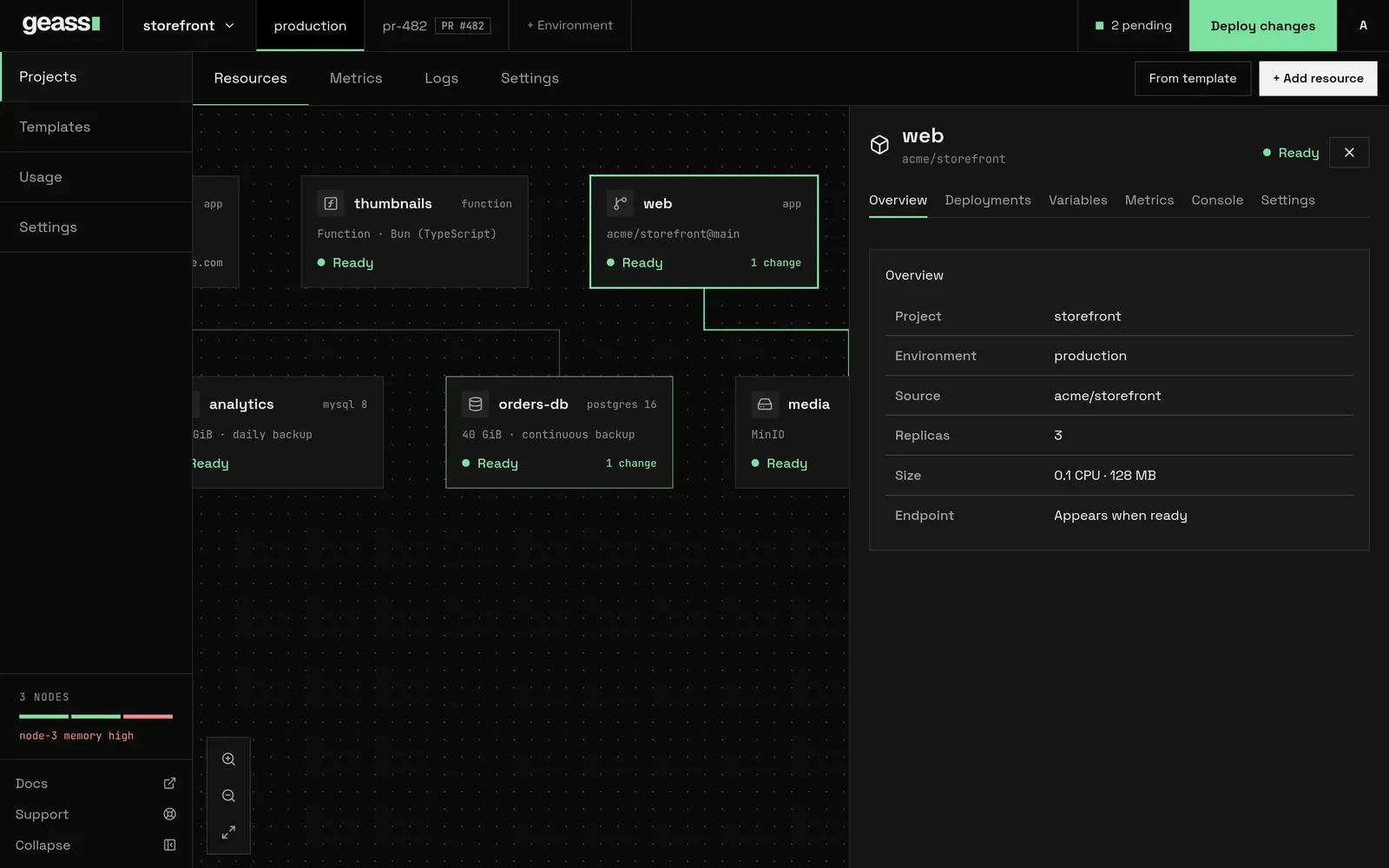 Screenshot with example data.
Before you start
Section titled “Before you start”You need these items:
- A project and an environment to put the service in. See Projects and environments.
- For a container image: the image reference. If the image is private, you also need your registry credentials. See Pull a private image.
- For a GitHub repository: a connected GitHub App, a Dockerfile in the repository, and a container registry that you control. Geass builds the image and must push it to a registry. See GitHub and builds.
- Free capacity in the cluster for the size that you select. See Usage and capacity.
Create a service from a container image
Section titled “Create a service from a container image”-
Open the project.
-
Select the environment tab.
-
Click + Add resource.
-
Select Docker Image.
-
Enter the image reference, for example
ghcr.io/acme/storefront:1.4.0ornginx:alpine. -
Press Enter, or click Create. Geass saves the service as a draft and opens its Settings. A draft runs nothing.
You can also paste a reference that contains
/or:directly into the first search box. Then select the Deploy image … row. -
Under Networking, set Port to the port that your container listens on.
-
On the Variables tab, add variables.
-
If the service must be public, add a domain.
-
In the top bar, click Deploy changes. The status goes from Draft to Setting up to Ready.
An image reference can contain letters, digits, and . _ / @ : -. It must start with a letter or a digit, and it cannot contain spaces. Docker Hub short names, for example nginx:alpine, work. Geass does not look up the image when you save it. A wrong name shows when you deploy, as a pod that cannot pull the image.
Pin a tag or a digest (:1.4.0, @sha256:…), not latest. Geass keeps the default pull policy of Kubernetes. With that policy, a pod pulls latest every time it starts. For any other tag, the pod uses an image that is already on the node. So a moving tag, for example :stable, can keep running an old image. A pinned tag also gives meaning to the deployment history.
Create a service from a GitHub repository
Section titled “Create a service from a GitHub repository”-
Click + Add resource, and then select GitHub Repository.
-
If the project is not linked to GitHub yet, click Connect GitHub and follow the pages of GitHub. If the cluster has no GitHub App yet, the box tells you so, and links to Settings → Connectors.
-
Select a repository from the list, or paste
acme/storefrontor a GitHub link into the first search box. Geass saves a draft and opens its Settings.The draft follows the default branch of the repository. If you pasted a
/tree/link, the draft follows the branch in the link. If you pasted a bare name, the draft followsmain. -
Under Source and Build, check Branch and Dockerfile path.
-
Click Deploy changes. Geass builds the image, pushes it to your registry, and runs it.
GitHub and builds tells you how the build works, where the image goes, what to do when the build fails, and how to build a newer commit. A push to the branch starts a build.
The service panel
Section titled “The service panel”To open the panel of a service, click the service on the canvas. The title is the display name. To change the display name, click it, enter a new name, and press Enter. To cancel, press Escape. The name is only a label. Geass generates the service ID, for example amber-fern. The service ID never changes. You use the service ID in kubectl and in the private address.
The header shows the status and, when it applies, Redeploy or Retry. The panel has these tabs:
| Tab | What it shows |
|---|---|
| Overview | Project, environment, source, replicas (with the autoscaling ceiling), size, and endpoint. |
| Deployments | The live deployment and the history, with logs. |
| Code | Functions only: the code, its mode, and its schedules. See Functions. |
| Variables | Variables, secrets, references, and shared variables. See Environment variables and secrets. |
| Metrics | Charts for the service. See Observability. |
| Console | A terminal in a running pod. Admins only. See Observability. |
| Settings | Everything below. |
Statuses
Section titled “Statuses”| Status | Meaning |
|---|---|
| Draft | The service was never deployed. Nothing runs. |
| Setting up | A deploy, a build, or a rollout is in progress, or the pods are starting. When a request wakes a sleeping service, the service shows this status until its copy is up. |
| Ready | The Deployment has all the replicas that you asked for available. A service with 0 replicas counts as ready. A service that is asleep because it sleeps when idle also counts as ready. |
| Unavailable | Geass cannot continue until something outside the service changes, for example free capacity or platform configuration. Or a container is stuck (CrashLoopBackOff, ImagePullBackOff, and similar). |
| Failed | The rollout failed, or provisioning failed after repeated errors. Retry appears when provisioning stopped trying. |
| Deleting | Geass is removing the service. |
Settings
Section titled “Settings”Open Settings on the service panel. Settings has a filter box at the top and a list of sections on the right. To focus the filter box, press /. Each section has its own Save changes button. After you save, a toast tells you the result:
- “Saved and applied”.
- “Saved”: the change waits for a deploy.
- “Saved and deployed”.
- “Nothing to save”.
Sections marked Applies instantly take effect when you save, even for a deployed service. Everything else becomes a pending change until you click Deploy changes. See Pending changes and Deploy changes.
Source
Section titled “Source”This section shows what the service runs. Only the block that matches how you created the service appears.
| Setting | Meaning | Default | Applies |
|---|---|---|---|
| Image | The container image reference. | What you entered. | On deploy |
| Repository | The GitHub repository, as owner/name. |
The repository that you selected. | On deploy |
| Root directory | The folder of the repository that the build runs in. The Dockerfile path is relative to it. See GitHub and builds. | Empty | On deploy |
| Branch | The branch that the build clones. After the first deploy, a push to the branch starts a build. See Branch deploys and push triggers. | The default branch of the repository | On deploy |
| Wait for CI | Start a build only when all the GitHub checks of the commit have succeeded. Needs the Checks permission on the GitHub App. See Wait for CI. | Off | On deploy |
| Runtime | Functions only: Bun (TypeScript), Node.js, or Python. The code, the mode, and the schedules are on the Code tab. | Bun (TypeScript) | On deploy |
Networking
Section titled “Networking”| Setting | Meaning | Default | Applies |
|---|---|---|---|
| Custom domain | The hostname that reaches the service, for example shop.example.com. Enter the name only, without https://. For no public address, leave it empty. |
None | Instantly |
| Port | The port that the container listens on, 1 to 65535. | 8080 | On deploy |
| HTTPS | Serve the domain over TLS. Needs the letsencrypt-prod certificate issuer. Geass creates that issuer when the cluster has an ACME email. See Domains and TLS. |
Off | Instantly |
| Verify DNS | Check that the hostname resolves each time that Geass reconciles the service, and show the result under the URL. This check never holds the service back from Ready, although the form text says “before reporting the domain as ready”. | Off | Instantly |
Under the fields, Public networking shows the URL, with a link, after the service is ready. Public networking also shows a line such as “Routed via
” or “Routed through the cluster ingress”. When Verify DNS is on and the name did not resolve, the line reads “DNS hostname is required”, whatever the cause. Private networking shows the address that other services in the project can use,<service ID>.<namespace>.svc.cluster.local:<port>, with a copy button. This address appears after the service has been deployed.
Domains and TLS tells you how a domain reaches your service, how HTTPS works, and how to fix DNS problems.
Ports and protocol. A service has one port. The container port, the Kubernetes Service port, and the Ingress backend all use the Port value. There is no protocol setting. Public traffic is HTTP or HTTPS through the Traefik ingress of the cluster. Other services in the project can connect to the port with any TCP protocol over the private address. But Geass does not publish raw TCP to the internet. Make the process listen on all interfaces (0.0.0.0), not only on localhost.
| Setting | Meaning | Default | Applies |
|---|---|---|---|
| Replicas | How many copies run. The form takes 1 or more. The API accepts 0 to 1000. | 1 | Instantly |
| CPU reserved and Memory reserved | What each replica sets aside for itself. The capacity check and the scheduler count it, and it always belongs to the replica. | 0.1 CPU, 128 MB | On deploy |
| CPU can use up to and Memory can use up to | The most that a replica can use while its server has room. | Same as reserved | On deploy |
| Run on | Only use nodes with the tags that you select. This setting appears only when nodes carry tags. See Scaling and placement. | None selected | On deploy |
| Enable autoscaling | Add replicas when the average CPU use goes above the target. | Off | Instantly |
| Scale up to | The most replicas that autoscaling can run. | 3 | Instantly |
| CPU target % | The average CPU use that starts scaling, 1 to 100. | 50 | Instantly |
| Sleep when idle | Stop the service when nobody uses it, and start it on the next request. Needs a public domain and the serverless add-on. When you turn it on, Enable autoscaling turns off, and the other way round. | Off | Instantly |
| Sleep after (minutes) | How long the service waits without a request before it stops, 1 to 1440. | 5 | Instantly |
CPU sizes are 0.1, 0.25, 0.5, 1, and 2. Memory sizes are 128 MB, 256 MB, 512 MB, 1 GB, 2 GB, and 4 GB. can use up to offers the sizes from the reserved size upward.
By default, can use up to is the same as what is reserved. So a replica cannot use more than it set aside, and nothing about it can be taken by surprise. Select a higher size for software that needs a lot only for a while, for example on its first start or while it runs migrations. Reserve what the software needs when it is quiet, and let it use more for the moment. The capacity check and the project limits count only what is reserved. So the room that a replica can borrow is not taken from anything else, and it is not guaranteed either:
-
A replica that goes over the most that it can use is stopped and started again.
-
When a server runs out of memory, the replicas that use more than they reserved are the first to be stopped. So a service that reserves much less than it uses is the first to go. Reserve at least what the service uses when it is quiet.
Under Memory reserved, the settings tell you when a replica has typically used more than that. The settings use the middle value of the last 24 hours of metrics, not the peak. This note needs Prometheus and an hour of data. Without them, the note shows nothing.
-
CPU over what is reserved is shared among the replicas on the server. A replica that reaches the most that it can use is slowed down, not stopped.
-
Autoscaling measures CPU against what is reserved. So a replica that reserves less scales out sooner.
When a copy of a service was stopped for memory, the service tells you. Its status reads Ran out of memory, with what it reserves and what it can use. The status stays for an hour after the last stop. A service that is ready between two stops shows the same words on its page. To fix the problem, raise Memory can use up to. If the status says that the server ran short, raise Memory reserved. Databases and object storage do not take part. They always use what they reserve, because a stop of one of them costs more than a stop of a service. For a service made with a manifest, spec.resources takes any requests and limits. See GeassApp.
With autoscaling on, Replicas is the minimum. While a service sleeps when idle, Replicas does not apply. The scale-to-zero add-on decides how many copies run, from none up to 3 by default. If the service cannot sleep, for example because there is no add-on or no public domain, the block tells you why. The service then keeps running. See Sleep when idle.
The deploy check compares the estimate with the free capacity of the cluster. The estimate is the size times the replicas, or the size times the autoscaling ceiling. See Usage and capacity.
Only repository services have build settings. For a service that runs an image or a function, the section says that there is nothing to build. The Builder block says that Geass builds with Kaniko.
| Setting | Meaning | Default | Applies |
|---|---|---|---|
| Dockerfile path | The Dockerfile to build, relative to the root directory. When the root directory is empty, the path is relative to the repository root. | Dockerfile |
On deploy |
| Watch paths | Gitignore-style rules, one on each line, that limit which pushes start a build. See GitHub and builds. | Empty | Instantly |
| Use build cache | Use image layers again between builds. This setting is part of the identity of the build, so a change to it starts a new build. | Off | On deploy |
Deploy
Section titled “Deploy”| Setting | Meaning | Default | Applies |
|---|---|---|---|
| Command | Replaces the entrypoint of the image. | The image default | On deploy |
| Arguments | Replaces the default arguments of the image. | The image default | On deploy |
| Working directory | The directory that the process starts in. | The image default | On deploy |
| Path (healthcheck) | An HTTP path that Geass calls on the service port to decide that the pod is ready. Empty means no check. | None | On deploy |
| Policy (restart) | Fixed at Always. The field is read-only. | Always | |
| Enable metrics | Expose Prometheus metrics from /metrics on the service port. Needs the Prometheus Operator, which the monitoring add-on installs. |
Off | Instantly |
Command and arguments. Geass splits both fields on spaces and does not interpret quotes. So you cannot write an argument that contains a space in these fields. If you need such an argument, set spec.build.command and spec.build.args in a manifest.
Healthcheck. The check is an HTTP GET on the service port, with a 10 second period, a 2 second timeout, and 3 failures allowed. While the check fails, the pod receives no traffic, and a rolling deploy waits. Use a cheap path that returns a status below 400 when the service can take requests. Without a check, a pod is ready as soon as its container starts.
General and Danger
Section titled “General and Danger”General shows the project, the environment, and the Service ID with a copy button. Danger deletes the service. See Delete a service.
Settings only available through the API
Section titled “Settings only available through the API”The dashboard has no form for these settings. Send them to POST /api/apps/{id}/update, or put them in a manifest.
| Field | Meaning |
|---|---|
livenessPath and livenessPort, readinessPort, readinessPeriod, readinessTimeout, readinessFailureThreshold |
A liveness probe, and the details of the readiness probe. A liveness failure restarts the container. |
minReplicas |
The autoscaling floor, when you want it to be different from replicas. |
scaleToZeroMax |
The most copies that a service that sleeps when idle can run when it is awake, 1 to 100. The dashboard sets only scaleToZero and idleSeconds. |
functionMode, functionTriggers |
The mode and schedules of a function. Also on the Code tab. See Functions. |
deploy=on |
Save and deploy in the same request. |
spec.ingress.rules (manifest) |
More than one host and path for the same service. |
spec.source.image.pullSecret (manifest) |
A registry pull secret. See Pull a private image. |
spec.configMapRefs, spec.secretRefs (manifest) |
Mount existing ConfigMaps and Secrets of the namespace of the environment. |
spec.build.registry (manifest) |
The registry that a repository service builds into. See GitHub and builds. |
spec.logs.archiveStoreRef (manifest) |
An object store that keeps the log of each build. Without it, Geass deletes the log with the build Job an hour after the build ends. |
A service has no persistent volume option. When a pod restarts, the container filesystem is lost. So keep state in a database or a bucket.
Pull a private image
Section titled “Pull a private image”The dashboard has no field for registry credentials. So a private image needs a pull secret, which you set in the resource. Create the secret in the namespace of the environment, and name the secret in pullSecret. The namespace exists as soon as the project exists:
kubectl -n proj-1a2b3c4d-production create secret docker-registry acme-registry \  --docker-server=ghcr.io --docker-username=acme-bot --docker-password="$GHCR_TOKEN"
kubectl -n geass-system patch geassapp amber-fern --type merge \  -p '{"spec":{"source":{"image":{"pullSecret":{"name":"acme-registry"}}}}}'
Then click Redeploy on the service, or Deploy changes if the service has pending changes. Geass then takes the new setting into its deployed copy. The pull secret applies to services that run an image. The image that a repository build produces is pulled without a pull secret. See GitHub and builds.
Deployments, redeploy and rollback
Section titled “Deployments, redeploy and rollback”Deployments lists every deploy. The first card is the live deploy. History (n) below it lists earlier deploys, newest first. Hide skipped removes skipped entries. Each row has these items:
- A badge: ACTIVE, FAILED, SKIPPED, or REMOVED for an older deploy.
- A title, for example
Deploy ghcr.io/acme/storefront:1.4.0orDeploy acme/storefront@main. - The time when the deploy ran.
Geass keeps the 12 most recent deployments of a service.
To open the log panel, click View logs, or click a row. The log panel has four tabs:
- Details: the outcome, any errors, and the provisioning messages.
- Build Logs: for a repository service, only for a deployment that has a build attached. The tab shows the failure reason of the build, or the name and phase of the build. The tab does not show the Kaniko output. To read that output, use
kubectl(see Build logs). - Deploy Logs: the last 400 lines of every running pod, for the active deployment only.
- Network Logs: not available yet. The tab tells you so.
Redeploy restarts the pods with the saved settings. Redeploy is in the header when nothing is pending. A redeploy does not rebuild a repository service: the same image runs again. To build a newer commit, see Build a new commit.
Rollback has no button. The API, the command line (geass rollback), and an agent (rollback_app) can go back to an earlier deploy of a service that runs an image:
# List the recorded deployments of a servicekubectl -n geass-system get geassdeployments -l geass.dev/app=amber-fern
curl -X POST https://geass.example.com/api/apps/amber-fern/rollback \  -H "Authorization: Bearer $GEASS_TOKEN" \  -H "Accept: application/json" \  -d revision=amber-fern-x7k2p
A rollback sets the image back to the image recorded in that deployment, restores its replica count, and redeploys. A rollback does not restore variables or other settings. For a repository service, a rollback only restores the replica count and redeploys the current build. So to go back, revert the commit and then build it (see Build a new commit). You cannot roll back a function. The response is “functions cannot be rolled back; restore the earlier code and deploy again”.
These other actions have no button:
- Scale:
POST /api/apps/{id}/scalewithreplicas. - Retry a failed provision:
POST /api/apps/{id}/retry-provision.
A project token can call these actions for the services of its environment. See Users and API tokens and the REST API.
POST /api/apps/{id}/build builds the branch of a repository service again. It puts the current build of the service back to the start. POST /api/apps/{id}/build/cancel cancels that build while it waits or runs. A project token can call both. See Build a new commit.
From the command line or an agent
Section titled “From the command line or an agent”Each action in the dashboard is also a geass command and an MCP tool. Some actions that have no button in the dashboard are also commands and tools. The command line and the MCP tools use the same API as the dashboard, so drafts, pending changes, and Deploy changes work the same way.
| To | Command | MCP tool |
|---|---|---|
| Create a draft from an image, a repository, or a function | geass apps create web -p proj-1a2b3c4d -e production --image nginx:alpine --port 80 |
create_app (image or repository) |
| Deploy the pending changes, and wait | geass deploy web --wait |
deploy_app |
| Read the state and replicas of a service | geass status web |
app_status |
| Read its logs | geass logs web or geass logs web -f |
get_logs |
| List its deployments | geass apps deployments web |
app_deployments |
| Set a variable or a secret | geass env set web LOG_LEVEL=debug |
set_variable |
| Set the replicas, or sleep when idle | geass scale web 3, geass scale web --sleep-after 10m |
scale_app, set_sleep_when_idle |
| Go back to an earlier deploy | geass rollback web |
rollback_app |
| Schedule a function | geass functions triggers add report nightly "0 3 * * *" |
set_function_trigger |
See Command line, MCP server, the CLI reference, and the MCP tools.
Delete a service
Section titled “Delete a service”- Open the service.
- Select Settings → Danger. The section is named Delete service.
- In the box, enter the service ID, not the display name.
- Click Delete service.
- Click Delete permanently.
You can also delete a service from the project: select Settings → Danger → Manage Services, and then click Remove.
When you delete a service, Geass removes these items:
- The Deployment, Service, Ingress, and autoscaler.
- The schedules of a function.
- The variables and secrets of the service.
- The build records of the service.
- The deployment history of the service.
A delete does not remove the image from your registry. You cannot undo a delete.
Manifest and API
Section titled “Manifest and API”You can create a service without the dashboard: write a GeassApp. A service created this way has no draft step. It runs as soon as spec.deploy.enabled is true. Later edits apply directly, with no list of pending changes.
apiVersion: geass.geass.dev/v1alpha1kind: GeassAppmetadata: name: amber-fern namespace: geass-system annotations: geass.dev/display-name: storefrontspec: project: proj-1a2b3c4d environment: production source: image: image: ghcr.io/acme/storefront:1.4.0 port: 3000 replicas: 2 ingress: host: shop.example.com tlsEnabled: true resources: requests: { cpu: 250m, memory: 256Mi } limits: { cpu: 250m, memory: 256Mi } deploy: enabled: true readinessProbe: httpGet: { path: /healthz, port: 3000 } env: - name: LOG_LEVEL value: infokubectl apply -f storefront.yamlkubectl -n geass-system get geassapp amber-fernspec.project is the ID of the project, not its name. kubectl -n geass-system get geassprojects lists the project IDs. Without spec.deploy.enabled: true, the service stays a draft. The controller reports the draft as “Service is configured and waiting for deployment”.
Through the API, POST /api/apps/create creates a draft:
- For an image, send
project,environment, andimage. - For a repository, send
source=gitwithrepositoryandbranch, in place ofimage. - For a function, send
source=functionwithruntime, in place ofimage.
The response gives the ID of the draft in name. If the request has no name, the ID comes from the image or repository name, for example storefront for ghcr.io/acme/storefront:1.4.0. To get a generated ID as the dashboard does, add draft=on. To deploy the service, use POST /api/apps/{id}/deploy. Both calls take a form body and need a workspace admin token. The versioned API takes the same fields as JSON: POST /api/v1/apps, PATCH /api/v1/apps/{name}, and POST /api/v1/apps/{name}/deploy. See the REST API.
What happens under the hood
Section titled “What happens under the hood”For a service amber-fern in project proj-1a2b3c4d, environment production, Geass makes these objects:
| Object | Namespace | Name |
|---|---|---|
GeassApp, the desired state |
geass-system |
amber-fern |
GeassDeployment, one for each deploy, plus amber-fern-active |
geass-system |
amber-fern-<suffix> |
GeassBuild and its Job, repository services only |
geass-system |
amber-fern-build-<hash>, …-kaniko |
| Secret with the secret values of the service | geass-system |
amber-fern-secrets |
Deployment, one container named app |
proj-1a2b3c4d-production |
amber-fern |
Service on port http |
proj-1a2b3c4d-production |
amber-fern |
| Ingress, when a domain is set | proj-1a2b3c4d-production |
amber-fern |
| ConfigMap and Secret that hold variables | proj-1a2b3c4d-production |
amber-fern-config, amber-fern-secret |
| HorizontalPodAutoscaler, when autoscaling is on | proj-1a2b3c4d-production |
amber-fern |
| ServiceMonitor, when metrics are on | proj-1a2b3c4d-production |
amber-fern-metrics |
| Service and HTTPScaledObject, when the service sleeps when idle | proj-1a2b3c4d-production |
amber-fern-wake, amber-fern |
| CronJob for each schedule, and Secret with its token, for a function | proj-1a2b3c4d-production |
amber-fern-<schedule>-<hash>, amber-fern-trigger |
kubectl -n geass-system get geassapp amber-fern -o yamlkubectl -n proj-1a2b3c4d-production get deploy,pods,svc,ingress -l app.kubernetes.io/name=amber-fernkubectl -n proj-1a2b3c4d-production describe deploy amber-fernkubectl -n proj-1a2b3c4d-production logs -l app.kubernetes.io/name=amber-fern -c app --tail=100The status of the Ready condition on the GeassApp carries the message that the dashboard summarizes. Geass marks a service that fails repeatedly as ProvisionFailed. Repeatedly means five consecutive errors or three minutes. The service then stops retrying until you click Retry or save a change. For every message, see GeassApp.
Troubleshooting
Section titled “Troubleshooting”The service stays a Draft after you save. A save does not deploy a draft. In the top bar, click Deploy changes.
The service stays in Setting up. Open Deployments → View logs. For a repository service, the message is “Git source is waiting for a successful build”. See GitHub and builds. For other services, run kubectl -n <namespace> get pods and describe the pod. A pod that is Pending usually has no node to run on. See Usage and capacity.
The status is Unavailable and the condition says The service cannot start: app is ImagePullBackOff. The same message appears for ErrImagePull, InvalidImageName, CrashLoopBackOff, CreateContainerConfigError, and CreateContainerError. Geass reads the message from the pod. If the container keeps failing, the status becomes Failed after five failed checks or three minutes, and Retry appears. See GeassApp.
Pods show ErrImagePull or ImagePullBackOff. The image name or tag is wrong, or the image is private. Check the name in Source. For a private image, set a pull secret.
Pods show CrashLoopBackOff. The process exits. Read Deploy Logs, or run kubectl logs --previous. These are common causes:
- A missing variable. See the Variables tab, and remember that variables apply only after a deploy.
- A wrong Command.
- A process that listens on a port different from Port.
The pod runs but the domain returns 502, 503, or “no available server”. One of these problems is the cause:
- Port does not match the port that the process listens on.
- The process listens only on
localhost. - The healthcheck fails, so the pod receives no traffic.
Run kubectl -n <namespace> get endpoints amber-fern. An empty list means that no pod is ready.
The domain returns 404 page not found. Traefik has no route for the hostname. These are possible causes:
- The service might not be deployed yet. Geass creates the Ingress on deploy.
- The Custom domain might contain more than the hostname.
- The request reached a different server than the server that runs Geass.
See Domains and TLS.
The status says “Ran out of memory”. A copy of the service was stopped because it used more memory than it could have. Either the copy went over Memory can use up to, or the server ran short while the copy used more than it reserved. The status tells you which sizes apply. Select a higher Memory can use up to, or reserve more, and then deploy. If the problem continues at a size that should be enough, look for a leak on the Metrics tab. A busy server can stop a service that reserves much less than it uses, even when the service is under its limit.
Deploy changes fails with “This service needs about … CPU and … memory”. The cluster does not have that much free capacity. Select a smaller size, lower the replica count or the autoscaling ceiling, or add a node.
The status says “Provisioning failed after repeated errors” and shows Retry. Geass stopped trying after repeated errors. Read the error in Deployments → View logs → Details. Fix the cause, and then click Retry.
Enabling metrics fails with “metrics are enabled but Prometheus Operator is not installed in this cluster”. The cluster has no ServiceMonitor kind. Turn on the monitoring add-on, or turn off metrics.
A variable that you added is not in the container. Variable changes wait for a deploy. See Environment variables and secrets.
Your change to Replicas or the domain took effect, but the rest did not. These settings apply immediately: replicas, autoscaling, sleep when idle, the domain, HTTPS, the DNS check, metrics, and watch paths. The rest waits for Deploy changes.
The service has no pods and the status is Ready. The service is asleep: Sleep when idle is on, and nobody has sent a request to it for the idle time. The next request to its public domain starts the service. See Sleep when idle.